How to access a new speaking activity?
Step 1
Log into MCEduHub

Step 2
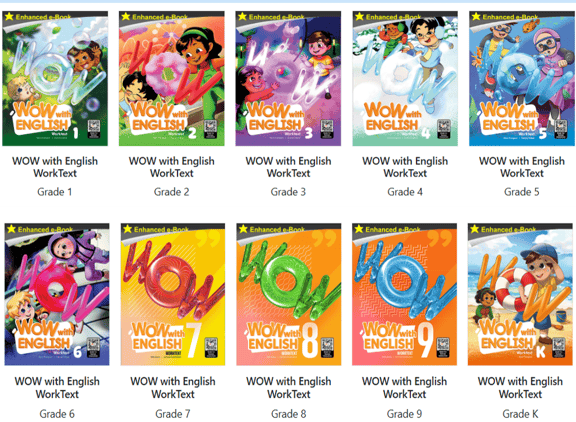
Select a WOW with English Series
Step 3
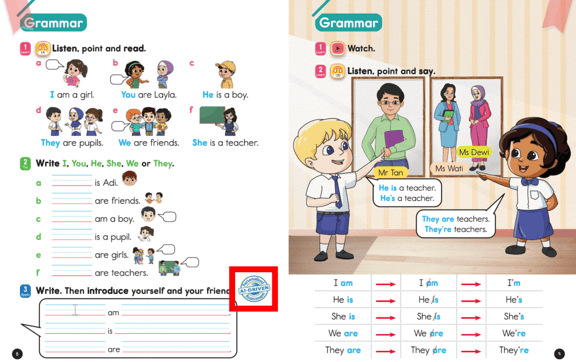
Click on Personalised AI-Driven Assessment icon to access AI speaking activity.
Step 4
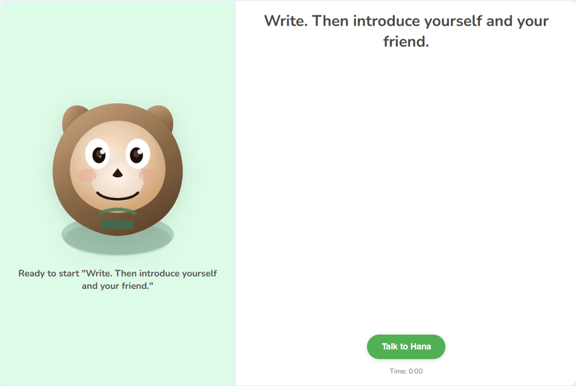
The AI Speaking activity will launch.
How do I create a new speaking activity?
Teachers can create their own speaking activities by following these steps:
Step 1
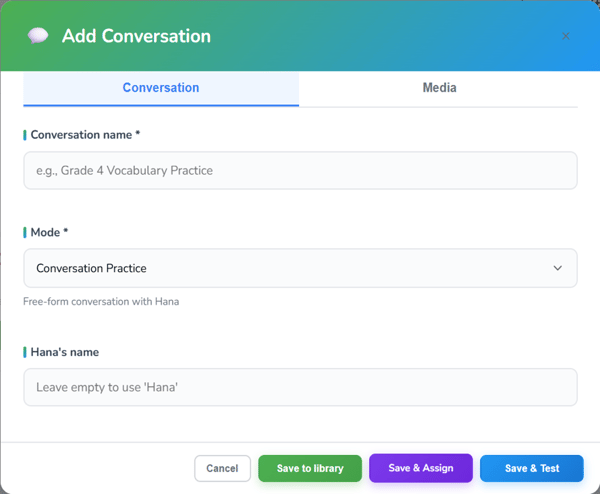
Click on "+ New" and a pop-up box will launch.
Step 2
Once launched, you are required to
-
Choose a conversation or media (located at the top of the pop-up)

- Enter a Conversation name

- Enter Conversation mode

- Enter Hana's role

- Enter Conversation goal

- Enter Student's role

- Enter Tags (optional)

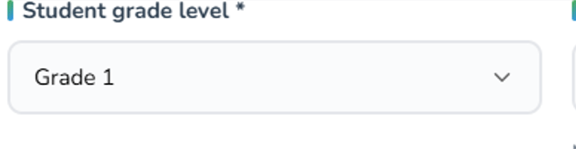
- Enter Student's Grade level
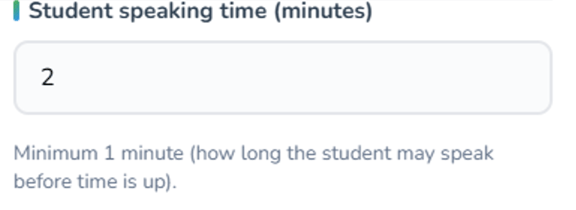
- Enter Students speaking time
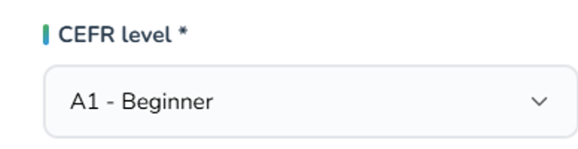
- Select CEFR Level
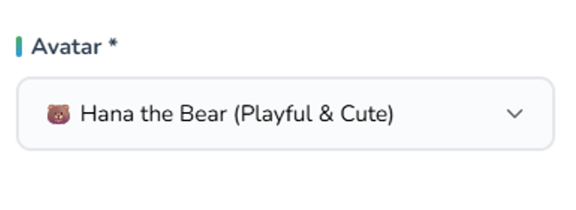
- Select Avatar
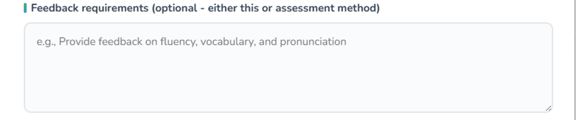
- Enter Feeback requirements
- Select Avatar

- Click "Save to library"

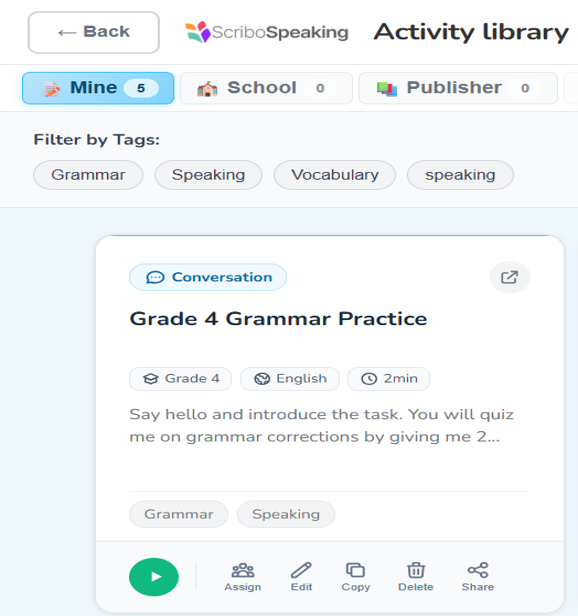
- Once created, the activity will appear in your library
How do I test a speaking activity?
To test a speaking activity, please follow these steps
Step 1
Click on the green play button

Step 2
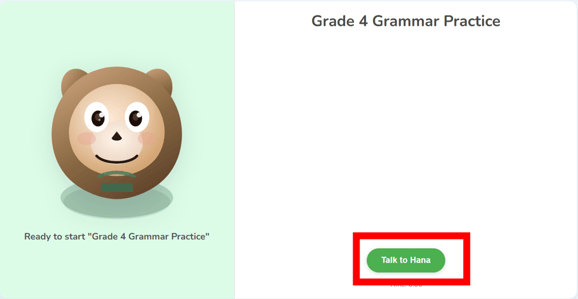
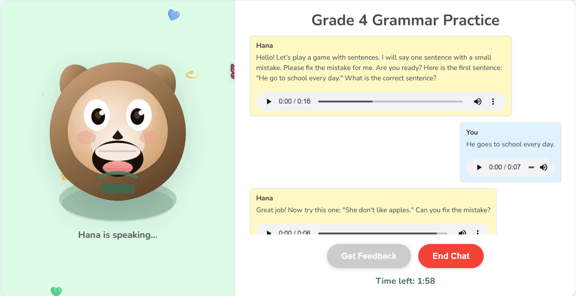
Click on "Talk to Hana" to test your speaking activity
Step 3
Speak into the microphone to begin testing/ practice. Once done, click on "End Chat" to complete your testing/ practice
Step 4
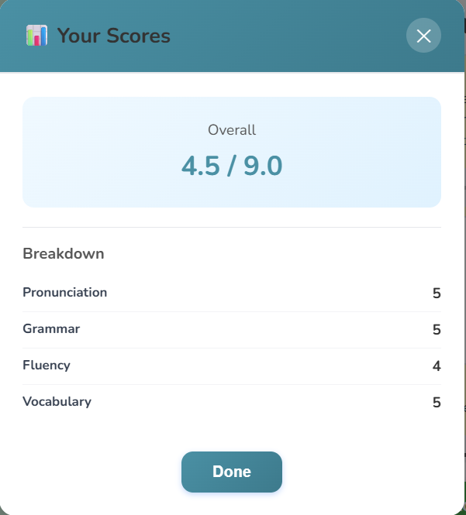
A pop-up will appear after clicking "End Chat" to show your score. Once you have reviewed your score, click on "Done"
How do I view previous speaking activity testings?
Step 1
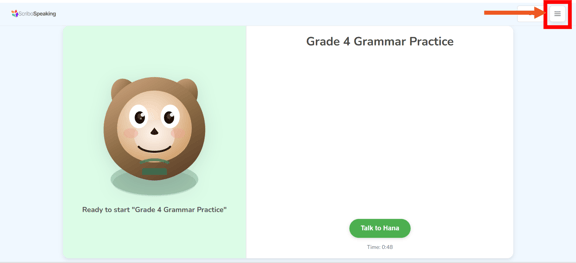
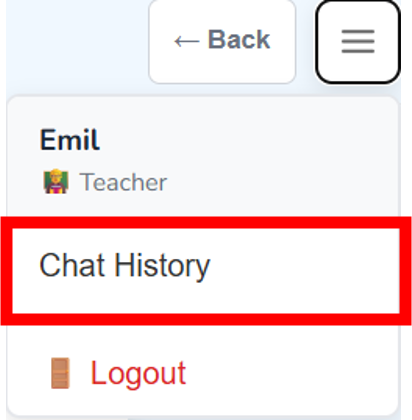
Click on the bar icon at the top right corner then click on "Chat History"
Step 2
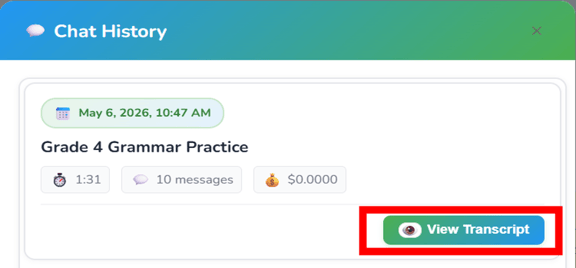
A pop-up will appear. Select the transcript you wish to view by clicking “View Transcript”
Step 3
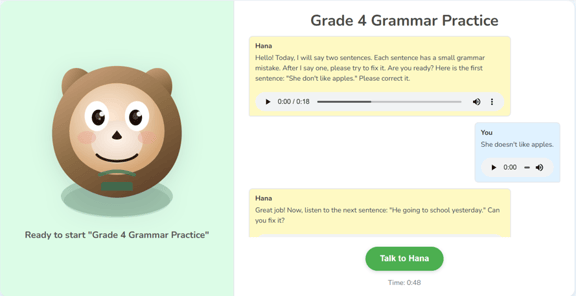
Previous practice will be loaded once you have clicked on "View Transcript"
Step 4
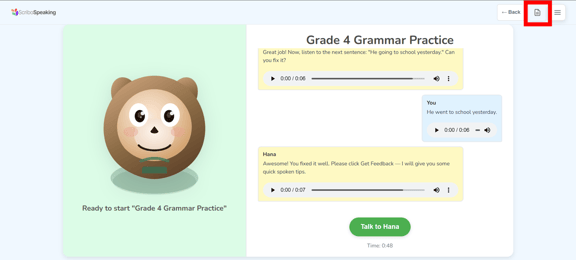
To view your conversation transcript, click on the document icon.
Step 5 (Optional)
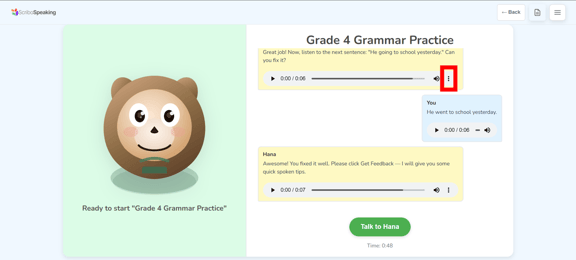
Click on the 3 dots to adjust the playback speed or download the audio
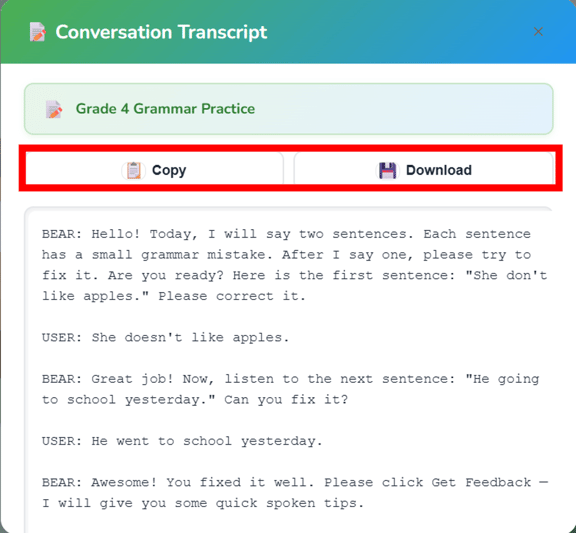
A pop up will appear. You can either copy the transcript or download it.
How to assign a new speaking activity?
Step 1
Click on Assign.

Step 2
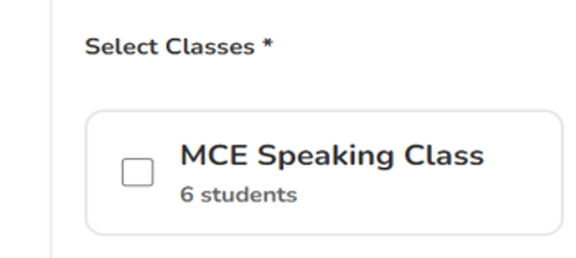
Select your class.
Step 3
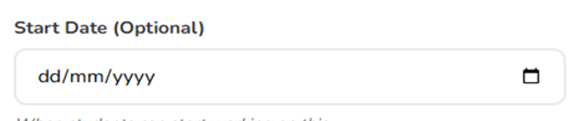
Select "Start Date (Optional)".
Step 4
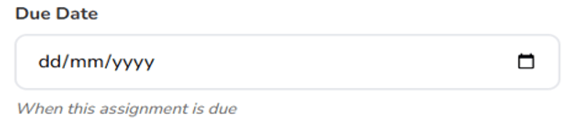
Select "Due Date".
Step 5
Add in your instructions.

Step 6
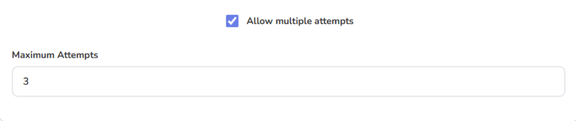
Tick, “Allow multiple attempts” to choose the number of attempts.
Step 7
Once done, click on "Assign to X class".
How to edit a new speaking activity?
Step 1
Click on "Edit"

Step 2
Edit the necessary fields in the conversation Follow steps in “How do I create a new speaking activity?"
How do I copy a speaking activity?
Step 1
Click on "Copy"

Step 2
Edit the necessary fields in the conversation Follow steps in “How do I create a new speaking activity?"
How do I delete a speaking activity?
Step 1
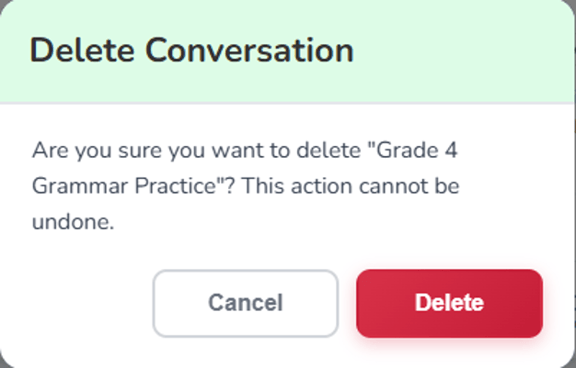
Click on "Delete"

Step 2
A pop up will appear prompting user. Click on "Delete" to delete a conversation.
How do I share a speaking activity?
Step 1
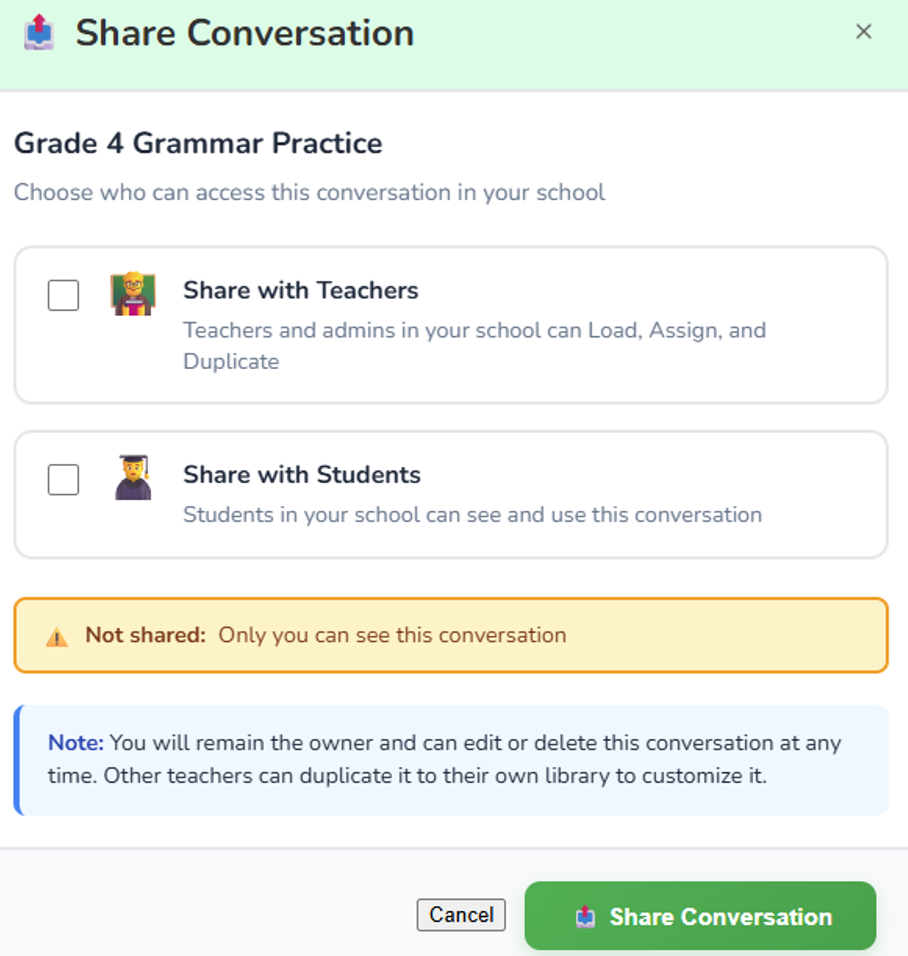
Click on "Share" and a pop-up will appear.

Step 2
To share, select either “Share with Teachers” or “Share with Students”. Once done, click on "Share Conversation"
How do I edit a student's score on the Teacher's Dashboard?
Step 1
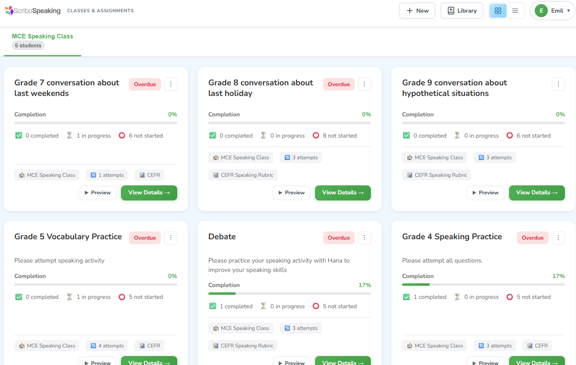
At the Teacher’s Dashboard, click on the activity you want to view. Click on "View Details" to see more.
Step 2
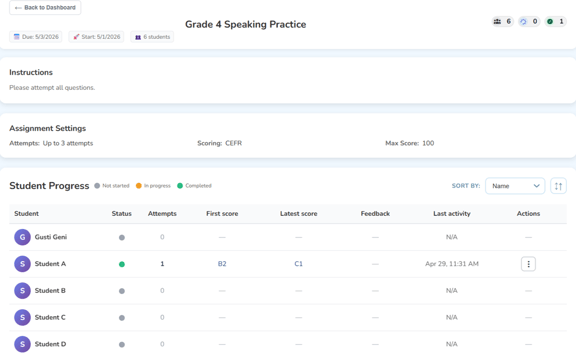
Once you clicked on "View Details", you would be able to see the student's score and the number of attempts.
Step 3
Search for the student's name and click on the 3 dots and select "View feedback"

Step 4
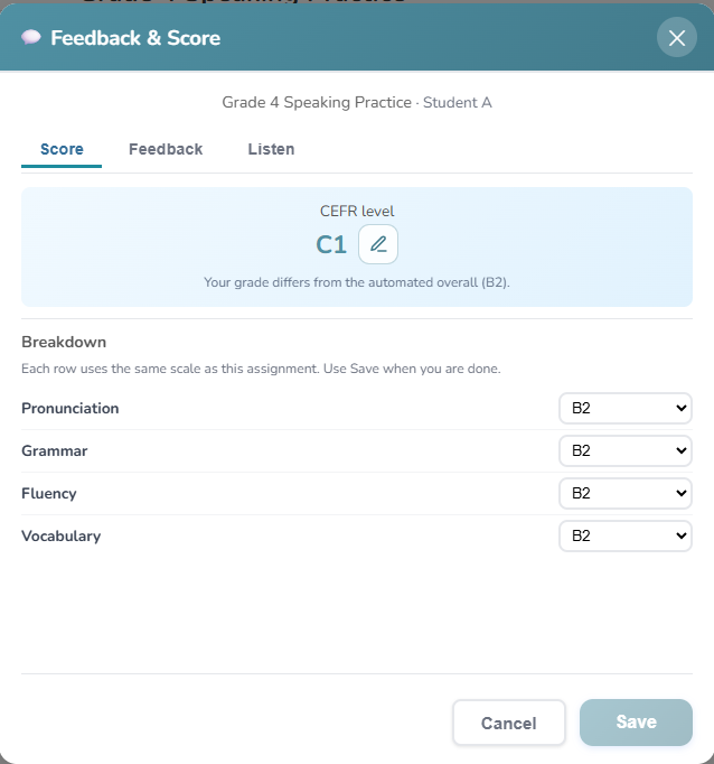
Once "View feedback" is clicked, a pop-up will show the “Feedback & Score”. Teachers can edit the Punctuation, Grammar, Fluency, Vocabulary scores.
Step 5
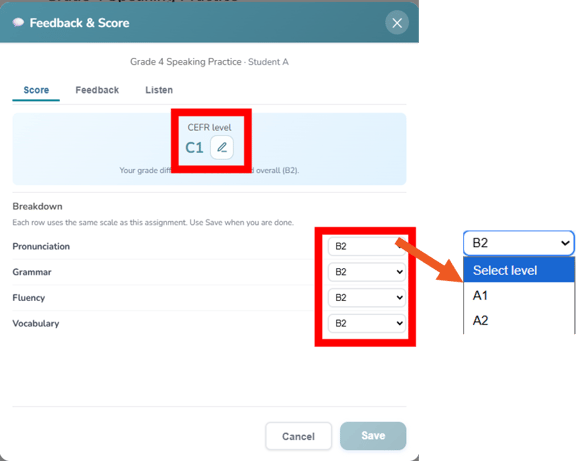
To edit the score, look for the category you wish to edit and click on the score. A drop-down menu will appear for teachers to edit the CEFR scores.
Once done, click on "Save".
Student's Dashboard
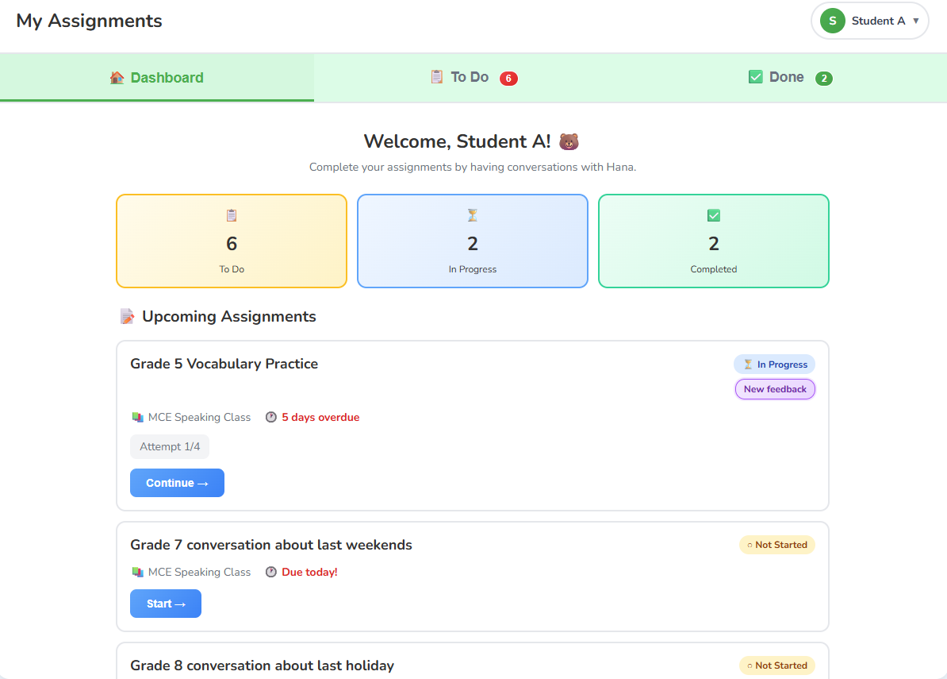
The Student’s Dashboard shows:
-
To Do
-
Tasks that are In Progress
-
Completed tasks under Completed List
To Do Tab
The "To Do" tab shows a list of “In Progress” assignments, or assignments that have not yet started. of all activities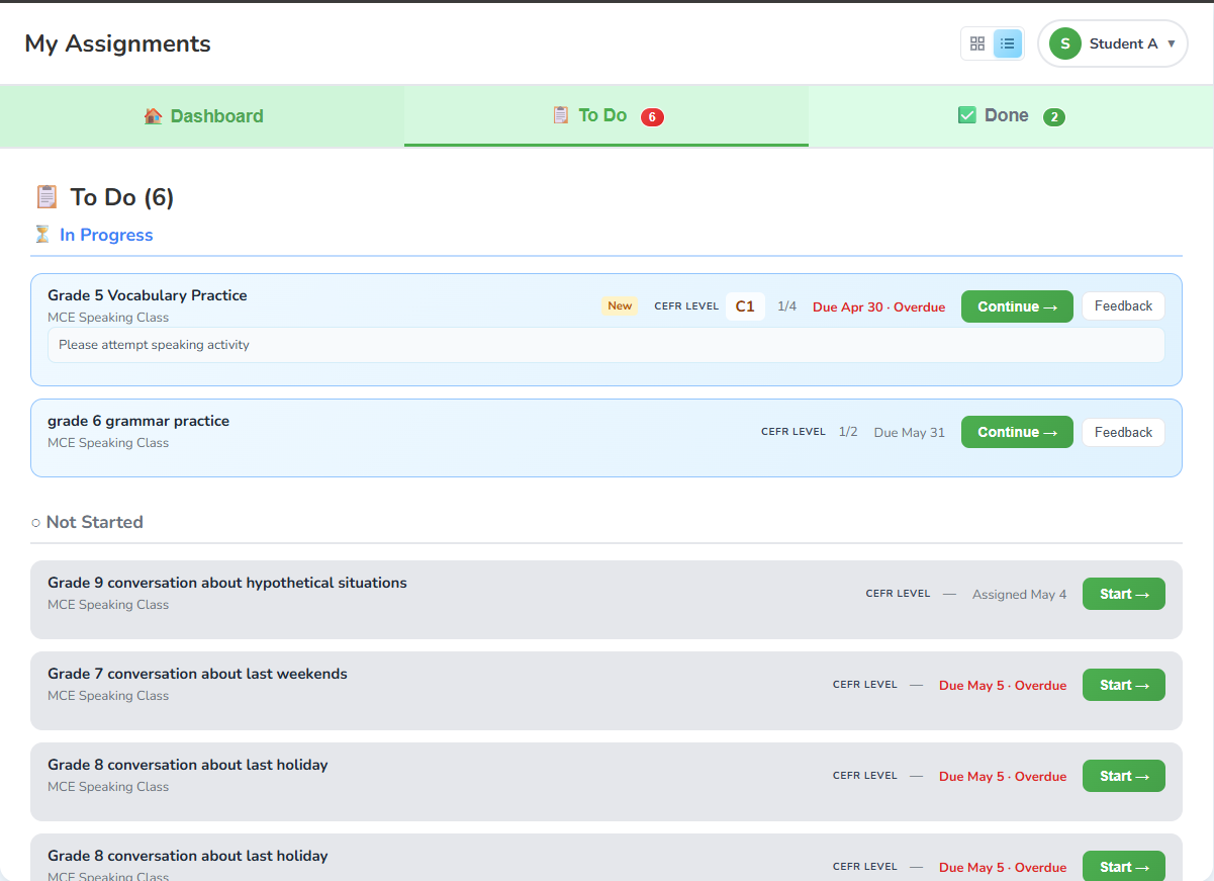
Done Tab
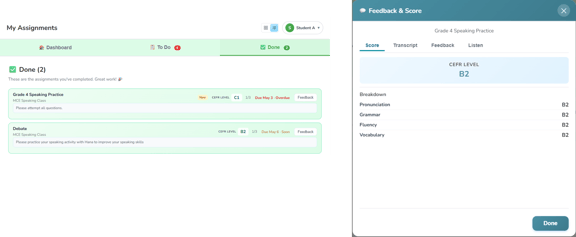
The "Done" tab shows the completed assignments done by students. They can view their CEFR Level and click on feedback to view their feedback and score from teachers.